 Anil Computers
18/368, PREM KUTIR,
UNIVERSITY ROAD,
UDAIPUR - 313001
RAJASTHAN, INDIA
Anil Computers
18/368, PREM KUTIR,
UNIVERSITY ROAD,
UDAIPUR - 313001
RAJASTHAN, INDIA [email protected]
[email protected]
[email protected]
[email protected]
[email protected] 09414234600, 7737447183, 9829815828
 Anil Computers
18/368, PREM KUTIR,
UNIVERSITY ROAD,
UDAIPUR - 313001
RAJASTHAN, INDIA[email protected]
[email protected]
[email protected]09414234600, 7737447183, 9829815828
Anil Computers
18/368, PREM KUTIR,
UNIVERSITY ROAD,
UDAIPUR - 313001
RAJASTHAN, INDIA[email protected]
[email protected]
[email protected]09414234600, 7737447183, 9829815828

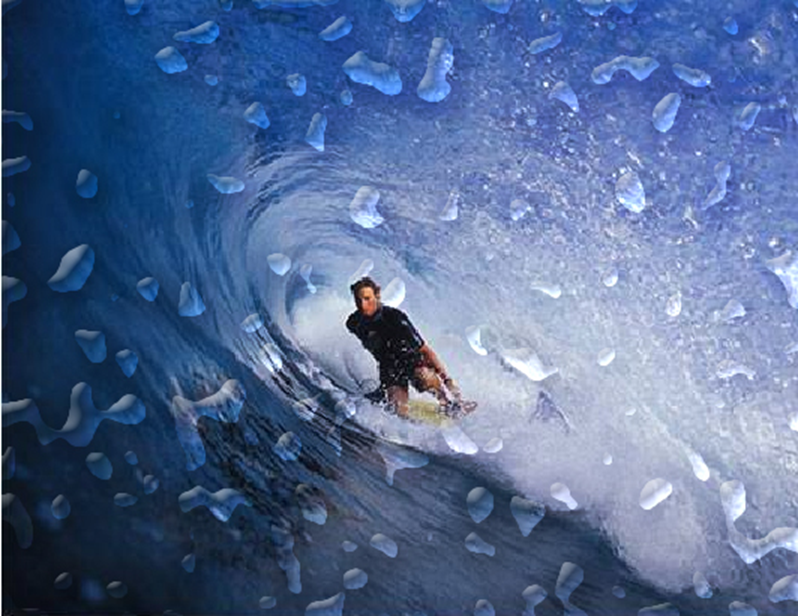
Adding realistic water drops in Photoshop is a great way to enhance images with a natural look. Follow these simple steps to achieve a stunning effect.
Open Water Drop File > Duplicate
Ctrl + J (Duplicate Layer)
New Layer > Fill White Color (Ctrl + Delete)
Filter > Noise > Add Noise > Gaussian, Monochromatic, Amount: 400
Filter > Blur > Gaussian Blur > Radius: 6
Magic Wend Tool > Remove Contiguous > Select Black Water Drop
Ctrl + Shift + I > Delete
Ctrl + D (Remove Selection)
Fill: 0%
Layer > Layer Style > Drop Shadow > Blend Mode: Overlay, Opacity: Decrease > Angle :120
Bevel & Emboss > Technique: Chisel Hard, Depth: Increase (500-600), Soften: Increase By 10, Shadow Mode: Color Dodge, White Color Fill, Opacity Set > Ok
Eraser > Remove Extra Part
By following these steps, you can create a realistic water drop effect in Photoshop that enhances any image. Experiment with different settings to achieve the perfect look.
? AI Tools & Technology Credits
इस लेख को आसान, स्पष्ट और उपयोगी बनाने के लिए आधुनिक AI तकनीकों की सहायता ली गई है।
इन टूल्स की मदद से रिसर्च, कंटेंट लेखन, डिजाइन, SEO और वीडियो क्रिएशन तेज़, सटीक और प्रोफेशनल तरीके से किया गया है।
हम इन सभी AI प्लेटफॉर्म्स का आभार व्यक्त करते हैं जिन्होंने सीखने और सिखाने की प्रक्रिया को सरल और प्रभावी बनाया।
यदि आप भी ब्लॉग, स्टडी नोट्स, प्रोजेक्ट या डिजिटल कंटेंट बनाना चाहते हैं, तो इन टूल्स का उपयोग अवश्य करें:
? OpenAI ChatGPT – AI Content Writing & Ideas
? Google Gemini – Smart Research Assistant
? Canva – Graphics & Design Creation
? Google Flow – AI Video Creation Tool
? InVideo – AI Video Maker & Reels Creator
? Ubersuggest – SEO & Keyword Research Tool
https://neilpatel.com/ubersuggest
? Remove.bg – Background Remover for Images
? ElevenLabs – AI Voiceover Generator
? Microsoft Copilot – Documents & Office Productivity AI
✨ AI tools के साथ सीखें, तेज़ी से बढ़ें और अपने काम को प्रोफेशनल बनाएं।
— Team Anil Computers