 Anil Computers
18/368, PREM KUTIR,
UNIVERSITY ROAD,
UDAIPUR - 313001
RAJASTHAN, INDIA
Anil Computers
18/368, PREM KUTIR,
UNIVERSITY ROAD,
UDAIPUR - 313001
RAJASTHAN, INDIA [email protected]
[email protected]
[email protected]
[email protected]
[email protected] 09414234600, 7737447183, 9829815828
 Anil Computers
18/368, PREM KUTIR,
UNIVERSITY ROAD,
UDAIPUR - 313001
RAJASTHAN, INDIA[email protected]
[email protected]
[email protected]09414234600, 7737447183, 9829815828
Anil Computers
18/368, PREM KUTIR,
UNIVERSITY ROAD,
UDAIPUR - 313001
RAJASTHAN, INDIA[email protected]
[email protected]
[email protected]09414234600, 7737447183, 9829815828
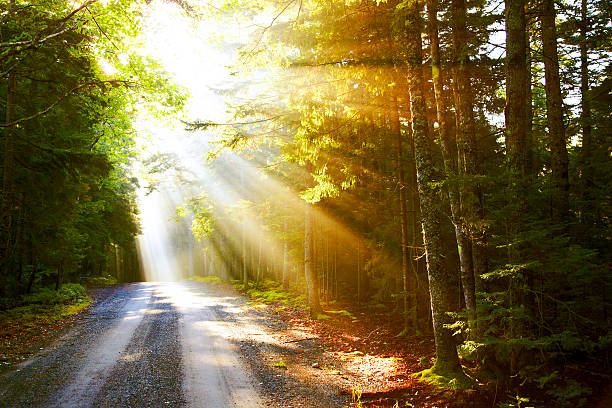
Creating a mesmerizing sunlight through tree leaves effect in Photoshop can completely transform your photos. At Anil Computers, Udaipur, we offer hands-on training in Photoshop where you can learn creative editing techniques like this one. This blog will walk you through the exact steps to achieve the warm, dappled light effect — perfect for enhancing outdoor photos with natural lighting magic.
Sunlight Through Tree Effect: Create a warm sunlight effect through tree leaves creates a mesmerizing, dappled light effect.
Go to File > Open or Browse in Bridge
Select your image file, for example, "Tree Practice"
Click Open
Navigate to Image > Duplicate
This ensures you're working on a copy and not the original image.
Press Ctrl + L
Move the first (black) slider to the right to darken the image.
While in Channels, press Ctrl + Click on the photo Blue Copy
This selects the white areas, which represent highlights.
Go to Layer > New Layer
Press Ctrl + Backspace to fill the selected area with white (assuming background color is white)
Press Ctrl + J to duplicate the layer
Go to Filter > Blur > Radial Blur
Set Amount: 80–90
Blur Method: Zoom
Quality: Best
Blur Center: Drag center slightly upwards
Click OK
Go to Layer > Layer Style > Outer Glow
Adjust glow settings for a soft light effect
Click OK
LLayer > Set Blending Mode >Soft Light
Step 12: Set Final Blending Mode
You now have a stunning, warm sunlight through tree
leaves effect that brings depth, realism, and artistic glow to your photograph.
The Effect Is Created
? AI Tools & Technology Credits
इस लेख को आसान, स्पष्ट और उपयोगी बनाने के लिए आधुनिक AI तकनीकों की सहायता ली गई है।
इन टूल्स की मदद से रिसर्च, कंटेंट लेखन, डिजाइन, SEO और वीडियो क्रिएशन तेज़, सटीक और प्रोफेशनल तरीके से किया गया है।
हम इन सभी AI प्लेटफॉर्म्स का आभार व्यक्त करते हैं जिन्होंने सीखने और सिखाने की प्रक्रिया को सरल और प्रभावी बनाया।
यदि आप भी ब्लॉग, स्टडी नोट्स, प्रोजेक्ट या डिजिटल कंटेंट बनाना चाहते हैं, तो इन टूल्स का उपयोग अवश्य करें:
? OpenAI ChatGPT – AI Content Writing & Ideas
? Google Gemini – Smart Research Assistant
? Canva – Graphics & Design Creation
? Google Flow – AI Video Creation Tool
? InVideo – AI Video Maker & Reels Creator
? Ubersuggest – SEO & Keyword Research Tool
https://neilpatel.com/ubersuggest
? Remove.bg – Background Remover for Images
? ElevenLabs – AI Voiceover Generator
? Microsoft Copilot – Documents & Office Productivity AI
✨ AI tools के साथ सीखें, तेज़ी से बढ़ें और अपने काम को प्रोफेशनल बनाएं।
— Team Anil Computers